
Laatste video's



A 14-year-old Sikh girl was allegedly abducted and sexually abused by a Pakistani grooming gang in West London. The ordeal ended after over 200 Sikh community members staged a dramatic protest outside the flat. Questions remain over police inaction and the prevalence of grooming gangs targeting vulnerable children.
..............................................................................................
News9 is India's leading English News Channel. News9 LIVE YouTube channel offers latest news videos on Politics, Business, Cricket, Bollywood, Lifestyle, Auto, Technology, Travel, Entertainment and a lot more.
Stay tuned for all the breaking news in English !
Welcome to our live stream, where we bring you the latest news and breaking headlines from India and around the world. Stay informed with real-time updates on global events, politics, business, technology, and more. Whether it's major developments, breaking stories, or in-depth analysis, we’ve got you covered. Join us as we discuss the most important events shaping the world today, and stay connected with the latest happenings from every corner of the globe!
► News9 Plus App : https://news9plus.app.link/aPwz3P2psMb
► News9 OTT Coupons : https://bit.ly/4dwLDx4
► Watch us on YouTube : https://www.youtube.com/c/NEWS9LIVE
► Like us on Facebook : https://www.facebook.com/news9live
► Follow us on Instagram : https://www.instagram.com/news9live
► Follow us on Twitter : https://twitter.com/NEWS9TWEETS
#WestLondon #GroomingGang #SikhCommunity #ChildSafety #SexualExploitation #RescueOperation #englishnews #tv9digital #tv9d #news #livestream & #news9livestreaming

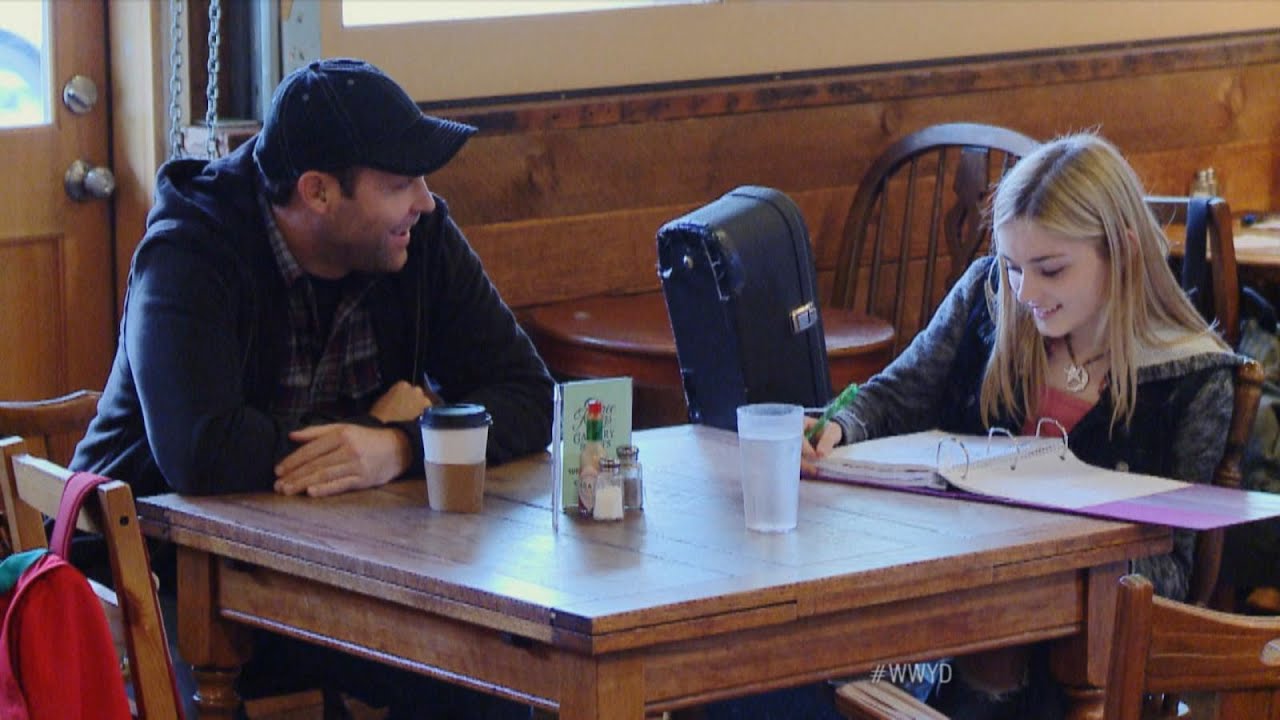
A 15-year-old girl is approached by an older man who invites her back to his home to play music.
Watch new WWYD episodes on Tuesday at 10/9c on ABC (starting Jan 26)! ►https://www.youtube.com/watch?v=SUlwc...
Subscribe to WWYD ► http://bit.ly/WWYDSubs
Check out some of the Best WWYD? Episodes ► https://www.youtube.com/watch?v=Htytu...
Follow What Would You Do? across the web!
Facebook: https://www.facebook.com/wwyd
Twitter: https://twitter.com/WWYDABC
Instagram: https://instagram.com/wwydabc/
What would you do when you think no one is watching? What Would You Do? (WWYD?) explores the varying answers with the help of hidden cameras capturing individuals who have been placed within seemingly everyday situation that quickly go ary. The individuals on this hidden camera show are forced to make tough calls when directly faced with situations of racism, violence, hate crimes, and other hot button cultural issues. Catch John Quinones reporting on these individuals as they make split-second decisions to intervene or mind their own business. WWYD? airs Friday nights at 9|8c on ABC.
What Would You Do? (WWYD) is a hidden camera show, hosted by ABC News correspondent John Quinones, in which unknowing bystanders are placed in uncomfortable, and often compromising real world scenarios in public. WWYD’s hidden cameras focus on the average person’s responses and reactions to these issues of social responsibility. Topics such as gay couples being affectionate in public, date rape, racism and racial profiling, interracial couples, abusive parents, drunk driving, and harassment of the homeless are touched upon in this series. What will you do? Would you choose to intervene in these situations? Watch and join the discussion.

Soft White Underbelly interview and portrait of Victoria, a woman who was sex trafficked as a child by her mother.
For ad-free, uncensored videos and plenty of exclusive content please subscribe to the Soft White Underbelly subscription channel at https://softwhiteunderbelly.com. It's $10 a month and watchable on Apple and Android mobile apps, Roku TV, Apple TV and Amazon Fire.
0:00 Small Town Childhood
1:02 Abusive Mother and Early Trauma
5:00 Sexual Abuse and Childhood Confusion
9:25 Mother's Rejection and Emotional Isolation
13:09 Teenage Rebellion, Shame, and First Relationships
17:31 Being Groomed and Pregnancy at 17
24:00 Military Escape, Divorce, and Losing Custody
30:00 Second Marriage, Abuse, and Trying to Rebuild
39:00 Afghanistan, Killing of a Child, and PTSD
47:52 Seeking Mental Health Support
50:04 COVID Disruption, OnlyFans, and Burnout
54:25 New Relationship and Moving to Virginia
57:00 Hope, Healing, and a Message to Others
Here's how to purchase the Soft White Underbelly books & merch: https://softwhiteunderbelly.org.
#swu #softwhiteunderbelly #documentary #marklaita #interview #motherdaughter #mentalhealth #adversechildhoodexperiences


The UK has been battling sexual grooming for decades, and it is still continuing. Many of the grooming gangs are men of Asian, specifically Pakistani, origin. Thousands of children and youngsters who have been victims of this evil still await justice. And some of the victims have decided to raise their voices. Recently, Prime Minister Rishi Sunak unveiled plans to create a task force to crack down on grooming gangs.
But is this enough to eliminate the evil of grooming?
Watch DARK WORLD with WION's Harshit Sabarwal to know more about this menace.
#Rotherhamscandal #Rotherhamabusescandal #GroominginUK
About Channel:
WION The World is One News examines global issues with in-depth analysis. We provide much more than the news of the day. Our aim is to empower people to explore their world. With our Global headquarters in New Delhi, we bring you news on the hour, by the hour. We deliver information that is not biased. We are journalists who are neutral to the core and non-partisan when it comes to world politics. People are tired of biased reportage and we stand for a globalized united world. So for us, the World is truly One.
Please keep discussions on this channel clean and respectful and refrain from using racist or sexist slurs and personal insults.
Subscribe to our channel at https://goo.gl/JfY3NI
Check out our website: http://www.wionews.com
Connect with us on our social media handles:
Facebook: https://www.facebook.com/WIONews
Twitter: https://twitter.com/WIONews
Follow us on Google News for the latest updates
Zee News:- https://bit.ly/2Ac5G60
Zee Business:- https://bit.ly/36vI2xa
DNA India:- https://bit.ly/2ZDuLRY
WION: https://bit.ly/3gnDb5J
Zee News Apps: https://bit.ly/ZeeNewsApps
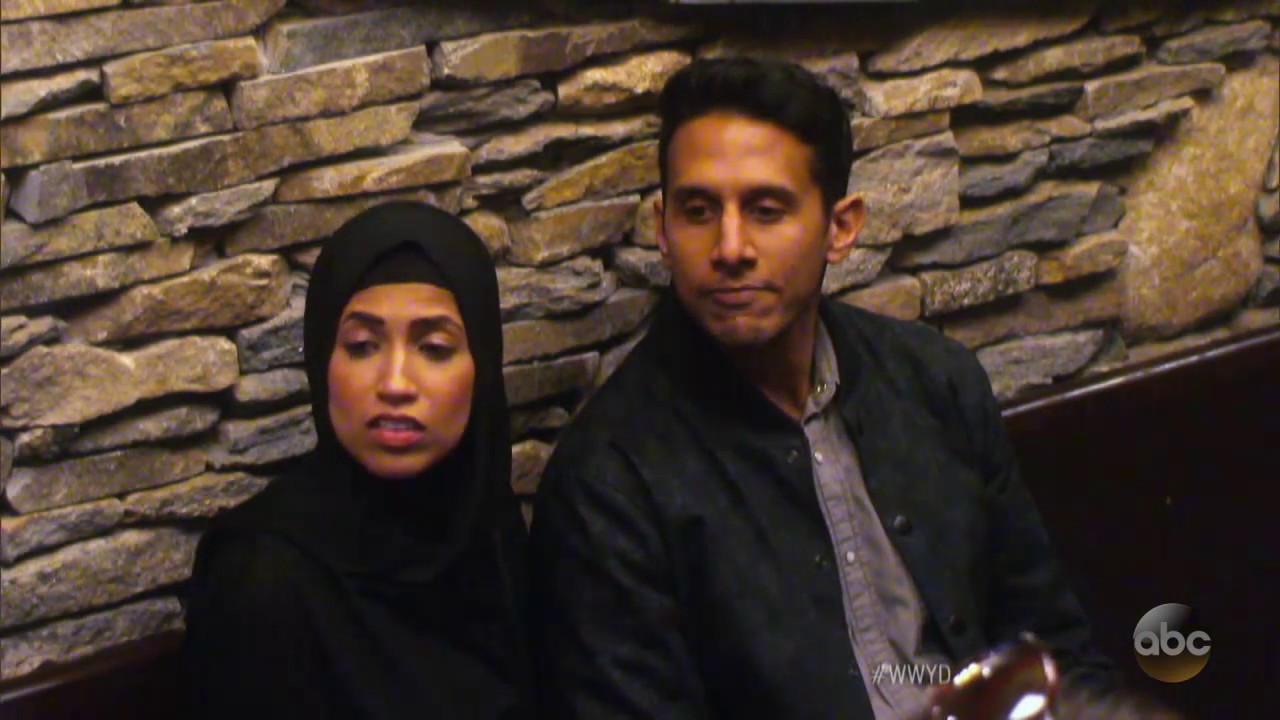
The hostess tells a Muslim couple they must wait for a booth in the back so they don't make other diners uncomfortable.
WATCH FULL EPISODES OF WWYD:
https://abc.go.com/shows/what-would-you-do
Watch brand new WWYD episodes on Friday at 9PM on ABC (starting June 16)! ►https://www.youtube.com/watch?v=SUlwc...
Subscribe to WWYD ► http://bit.ly/WWYDSubs
Check out some of the Best WWYD? Episodes ► https://www.youtube.com/watch?v=Htytu...
Follow What Would You Do? across the web!
Facebook: https://www.facebook.com/wwyd
Twitter: https://twitter.com/WWYDABC
Instagram: https://instagram.com/wwydabc/
What would you do when you think no one is watching? What Would You Do? (WWYD?) explores the varying answers with the help of hidden cameras capturing individuals who have been placed within seemingly everyday situation that quickly go ary. The individuals on this hidden camera show are forced to make tough calls when directly faced with situations of racism, violence, hate crimes, and other hot button cultural issues. Catch John Quinones reporting on these individuals as they make split-second decisions to intervene or mind their own business. WWYD? airs Friday nights at 9|8c on ABC.
What Would You Do? (WWYD) is a hidden camera show, hosted by ABC News correspondent John Quinones, in which unknowing bystanders are placed in uncomfortable, and often compromising real world scenarios in public. WWYD’s hidden cameras focus on the average person’s responses and reactions to these issues of social responsibility. Topics such as gay couples being affectionate in public, date rape, racism and racial profiling, interracial couples, abusive parents, drunk driving, and harassment of the homeless are touched upon in this series. What will you do? Would you choose to intervene in these situations? Watch and join the discussion.
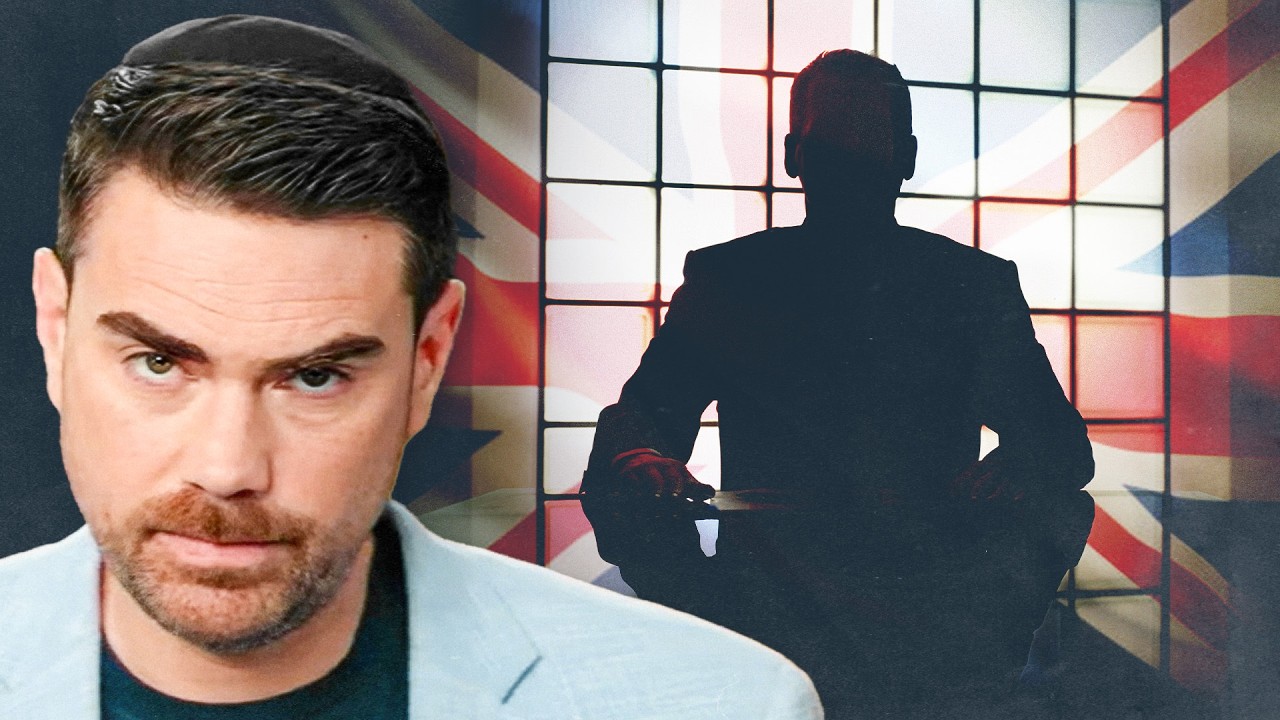
Over the course of years, largely Pakistani Muslim men orchestrated the abuse and r*pe of potentially hundreds of thousands of young British girls. It's really horrifying. And the worst part is——all of the UK’s institutions did absolutely nothing about it, all in the name of political correctness.
-- -- --
To see the full show, subscribe to DailyWire+ and watch all of our content ad-free:
https://dwplus.watch/BenShapiroMemberExclusive
To hear my take on other stories of the day, LIKE & SUBSCRIBE for new videos daily: https://youtube.com/@BenShapiro
Be sure to hit the notification bell so you never miss a video.
-- -- --
DailyWire+
Become a Daily Wire Member and watch all of our content ad-free: https://www.dailywire.com/subscribe
📲 Download the free Daily Wire app today on iPhone, Android, Roku, Apple TV, Samsung, and more.
📰 Follow me on the Daily Wire app or DailyWire.com to read my daily articles and receive my Friday newsletter.
📘 My book "Lions and Scavengers: The True Story of America (and Her Critics)" is available here:
https://dwplus.shop/LionsandScavengers
👕 Get your Ben Shapiro merch here:
https://dwplus.shop/BenShapiroMerch
Connect with me on social media:
Facebook — https://www.facebook.com/officialbenshapiro
Instagram — https://www.instagram.com/officialbenshapiro
Snapchat — https://www.snapchat.com/officialbenshapiro
TikTok — https://www.tiktok.com/@real.benshapiro
X — https://twitter.com/benshapiro
#BenShapiro #TheBenShapiroShow #News #Politics #DailyWire

The Hindu-Muslim clashes in Leicester— the result of communal hatreds young Indians in the UK inherited from their homelands— place at risk the hard-won gains of earlier generations Watch Praveen Swami explain in this episode of ThePrint #SecurityCode
---------------------------------------------------------------------------------------------
Join our channel to get access to perks. Click 'JOIN' or follow the link below:
https://www.youtube.com/channe....l/UCuyRsHZILrU7ZDIAb
---------------------------------------------------------------------------------------------
Connect with ThePrint
» Subscribe to ThePrint: https://theprint.in/subscribe/
» Subscribe to our YouTube Channel: https://bit.ly/3nCMpht
» Like us on Facebook: https://www.facebook.com/theprintindia
» Tweet us on Twitter: https://twitter.com/theprintindia
» Follow us on Instagram: https://www.instagram.com/theprintindia
» Find us on LinkedIn : https://www.linkedin.com/company/theprint
» Subscribe to ThePrint on Telegram: https://t.me/ThePrintIndia
» Find us on Spotify: https://spoti.fi/2NMVlnB
» Find us on Apple Podcasts: https://apple.co/3pEOta8
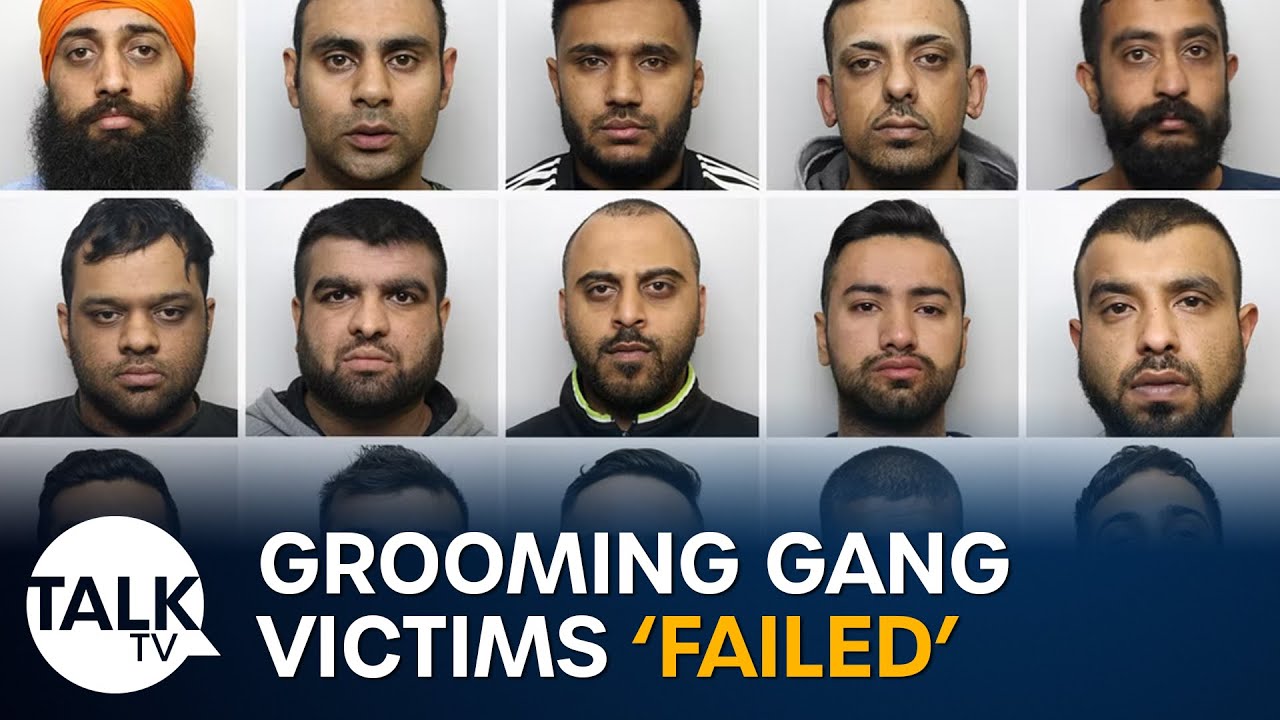

Shadow Immigration Minister Stephen Kinnock has urged people to make a formal complaint to the party after an MP was accused of sexual harassment.
SUBSCRIBE to our YouTube channel for more videos: http://www.youtube.com/skynews
Follow us on Twitter: https://twitter.com/skynews
Like us on Facebook: https://www.facebook.com/skynews
Follow us on Instagram: https://www.instagram.com/skynews
Follow us on TikTok: https://www.tiktok.com/@skynews
For more content go to http://news.sky.com and download our apps:
Apple https://itunes.apple.com/gb/ap....p/sky-news/id3163919
Android https://play.google.com/store/apps/details?id=com.bskyb.skynews.android&hl=en_GB
Sky News Daily podcast is available for free here: https://podfollow.com/skynewsdaily/
Sky News videos are now available in Spanish here/Los video de Sky News están disponibles en español aquí: https://www.youtube.com/channe....l/UCzG5BnqHO8oNlrPDW
Sky News videos are also available in German here/Hier können Sie außerdem Sky News-Videos auf Deutsch finden: https://www.youtube.com/channe....l/UCHYg31l2xrF-Bj859
To enquire about licensing Sky News content, you can find more information here: https://news.sky.com/info/library-sales
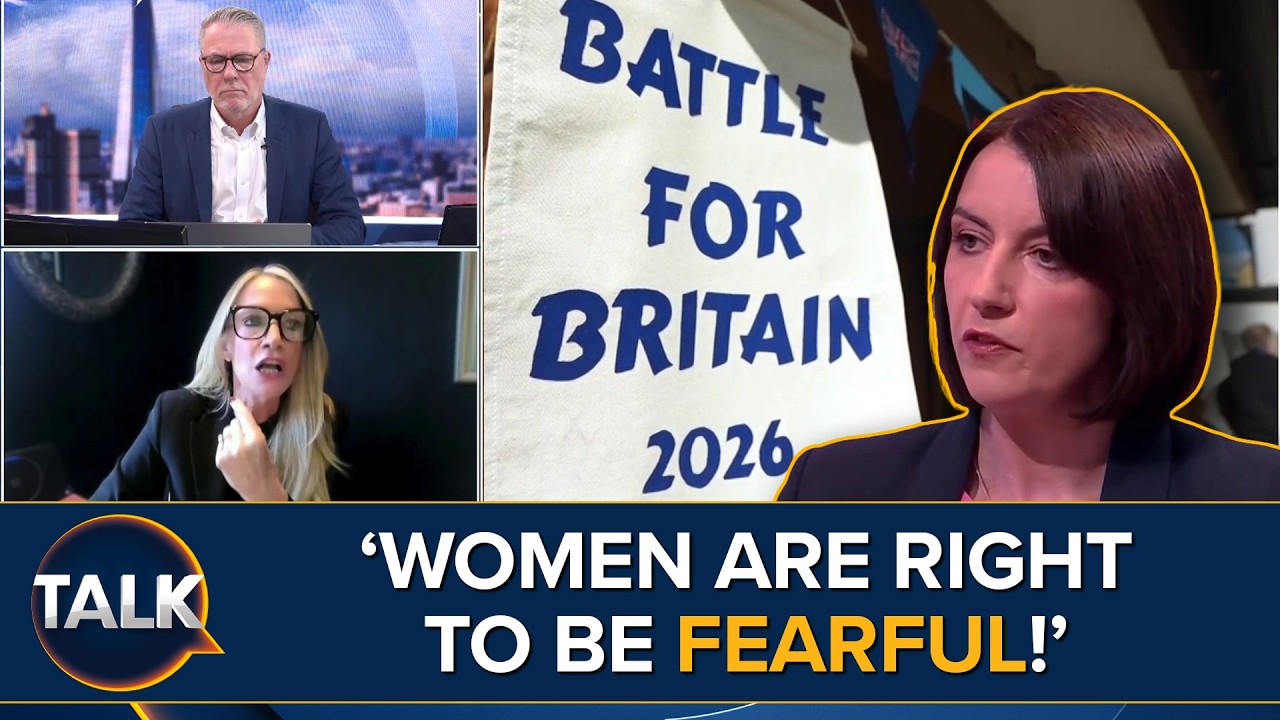
Pink Ladies organiser Orla Minihane delivers a furious response after Bridget Phillipson was challenged over the safety concerns raised by women living near the proposed male-only asylum site in Piddington.
Bridget said women were right to feel fearful in society more broadly but stopped short of saying whether the proposed camp would create a specific danger for local residents.
Orla accuses the Government of showing “zero empathy” and refusing to confront concerns surrounding the plan to accommodate approximately 1,250 men near the small Oxfordshire community.
#Piddington #WomensSafety #Immigration
Have you got a story? Email tips@talk.tv
Click here for more from Talk https://talk.tv
If you need any help visit: https://talk.tv/helplines
Subscribe on YouTube: https://www.youtube.com/talktv?sub_confirmation=1
Watch the full show: https://bit.ly/4fsnd9Q
Elon Musk is no stranger to controversial claims. His political views, disseminated to his 240m followers on X, strike many as plain-speaking and strike many more as plainly bigoted. In an interview with The Economist, editor-in-chief Zanny Minton Beddoes challenges some of Musk’s more outlandish claims, including that civil war in Britain is “inevitable”. The Tesla and SpaceX CEO also responds to allegations that he’s racist and a supporter of the far right.
You can watch the full interview from 6pm London time (1pm in New York), via the Economist’s website.
#AI #elonmusk #europe #uk
00:00 Musk: I don’t support the far right
01:50 When was Musk last in the UK?
04:11 Musk “I’m not a racist.”
04:45 Is Musk anti-Muslim?
05:46 Musk in shaping European politics
06:14 Musk: I don’t care if people loathe me
Sign up to the Insider newsletter: https://econ.st/4nOyzIb
Subscribe to The Economist: https://www.economist.com/subscribe
Download our app: https://www.economist.com/get-the-app
Follow The Economist on Instagram: https://www.instagram.com/theeconomist/
Follow The Economist on Facebook: https://www.facebook.com/TheEconomist
Follow The Economist on X: https://x.com/TheEconomist

Mayor Sir Sadiq Khan has been accused of “stonewalling” questions about whether London has a problem with so-called “grooming gangs”.
His Tory rival Susan Hall made nine successive attempts at Mayor’s Question Time to ask Sir Sadiq whether there were gangs operating, or previously active, in the capital.
But Sir Sadiq repeatedly asked Ms Hall, the former Tory mayoral candidate, to clarify what she meant by grooming gangs, claiming: “I’m not clear what she means.”
Subscribe to the Evening Standard: https://bit.ly/Subscribe-to-Evening-Standard
for latest breaking news from the UK, US and around the world, plus podcasts and features.
Evening Standard on socials:
Check out our full video catalog: https://www.youtube.com/c/Lond....onEveningStandard/vi
Videos, daily editorial and more: https://www.standard.co.uk/
Like us on Facebook: https://www.fb.com/eveningstandard
Follow us on Twitter: https://twitter.com/eveningstandard
and Instagram: https://www.instagram.com/evening.standard
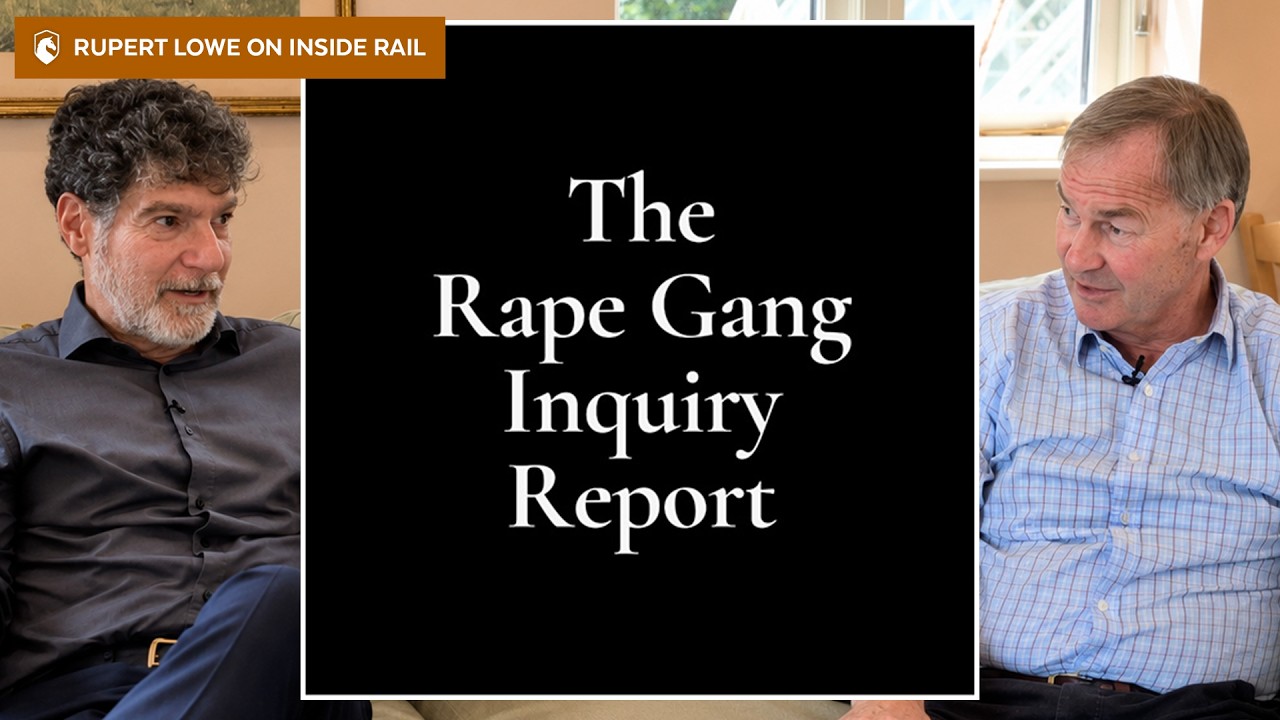
Rupert Lowe explains how the fear of being called a racist has allowed the systematic rape of hundreds of thousands of girls to go unchallenged for decades. Bret Weinstein sat down with him to discuss Restore Britain just a day before the report was released.
Watch the full episode: https://youtu.be/HeV5kRLyGgc
Find Rupert Lowe on X at https://x.com/RupertLowe10 and Restore Britain at https://www.restorebritain.org.uk.
*****
Join DarkHorse on Locals! Get access to our Discord server, exclusive live streams, live chats for all streams, and early access to many podcasts: https://darkhorse.locals.com
Check out the DHP store! Epic tabby, digital book burning, saddle up the dire wolves, and more: https://www.darkhorsestore.org
Theme Music: Thank you to Martin Molin of Wintergatan for providing us the rights to use their excellent music.
*****
Mentioned on this episode:
The Rape Gang Inquiry Report https://static1.squarespace.co....m/static/6810978a41b
Rupert Lowe’s Restore Britain announcement: https://x.com/RupertLowe10/status/2022394419685822647
*****
Rupert Lowe: "So these people who call me a neo-Nazi have allowed — this is a national newspaper — have allowed this evil to continue for, as I say, 30, 40, 50 years on an increasing scale.
And it's been allowed because people are frightened of being called racist, to your earlier point.
And not only that, you've ended up with the creation of Sharia courts. Now we have 85 Sharia courts, which is quite extraordinary.
Bret Weinstein: "How can you have Sharia courts?"
Rupert Lowe: "Well, you tell me, Bret, this is a country with our laws.
And as I say, I'm very happy for you to come here and integrate. These people aren't integrating. They're living their sort of almost tribal lives — they're like sort of probably we were a thousand years ago with sort of family loyalties and community loyalties, which trump every other race.
So in the end, you get all sorts of dishonesty. But again, our state has not been prepared to deal with this."
Bret Weinstein: "But how can you have a Sharia court in Great Britain?
How does that even work?"
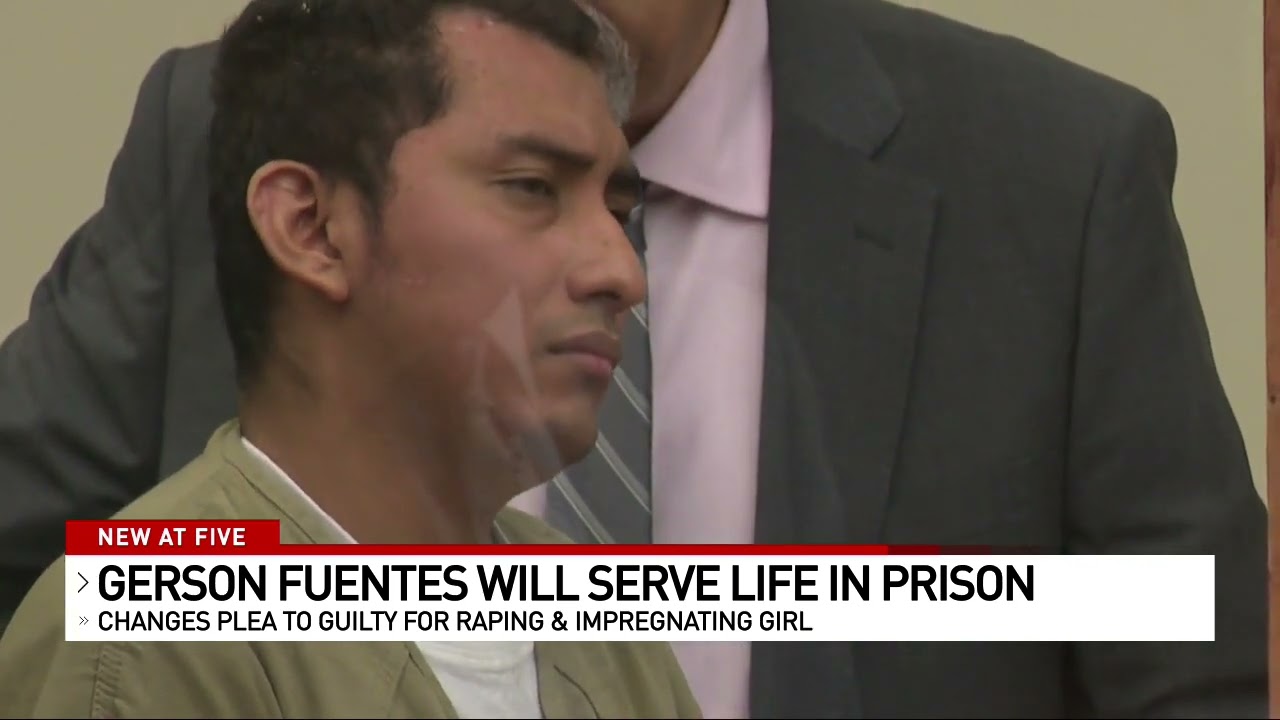
A man accused of raping and impregnating a young Columbus girl learned his punishment Wednesday.
Gerson Fuentes agreed to a plea deal and was sentenced to life in prison with the possibility of parole after 25 years. He will also be a Tier 3 Sex Offender.
The girl was raped at age 9, and then, at age 10 a few weeks later, had to travel to Indiana with her mom to get an abortion at the height of the Roe v. Wade overturn last year.
_______________
Stay up to date with our social media:
WSYX on Facebook: https://www.facebook.com/WSYXABC6
WSYX on Twitter: https://twitter.com/wsyx6
WSYX on Instagram: https://www.instagram.com/wsyx6/
Subscribe to WSYX on YouTube: https://www.youtube.com/channe....l/UC6HHWRGuLD11spg9D
Daily News Playlist: https://www.youtube.com/playli....st?list=PLVJHjLYVOrA
For more information, visit https://abc6onyourside.com/
Have a news tip? Send it directly to us:
Email us: news@wsyx6.com
Call the Newsroom: 614.481.6659
WSYX and WTTE are OH based stations owned and operated by Sinclair Broadcast Group. Sinclair Broadcast Group, Inc. is one of the largest and most diversified television broadcasting companies in the country today.
#WSYX #ABC6 #News #WSYX6 #6OnYourSide
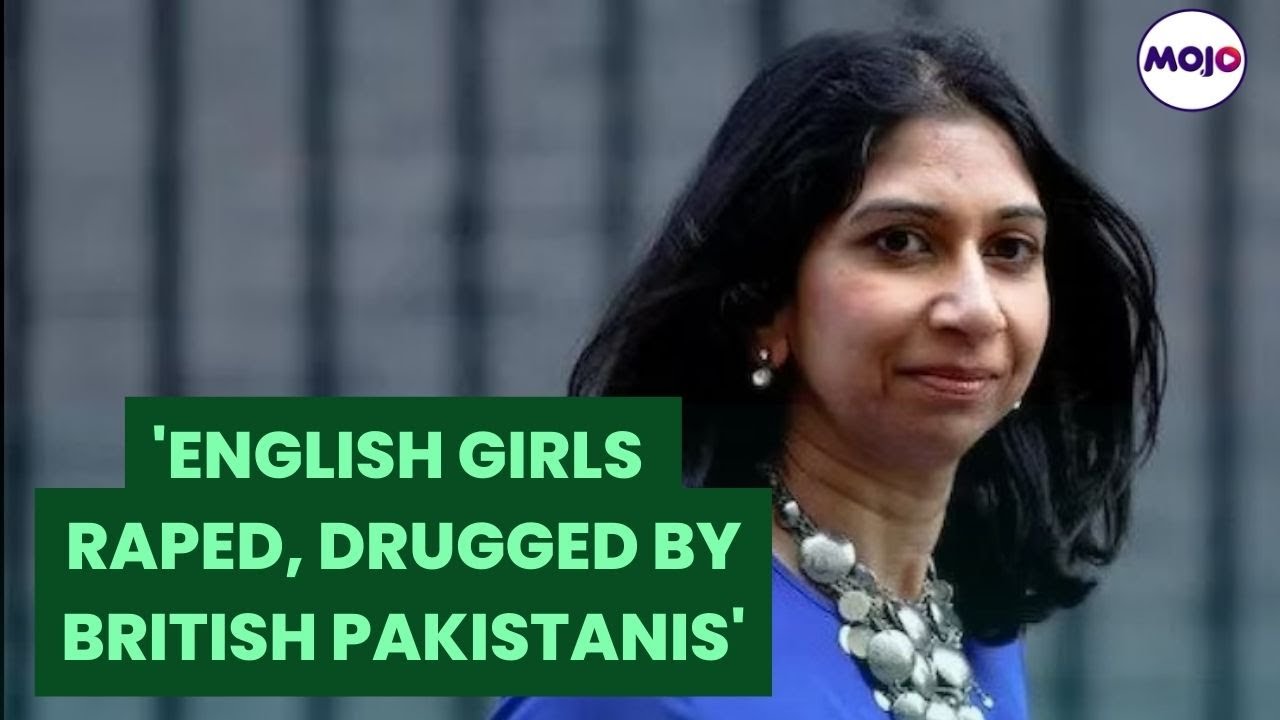
UK Home Secretary Suella Braverman, who is known for her tough stand on illegal migrants, on Sunday came down hard on British Pakistani men who she alleged were harming white English girls in Britain. She said that some British Pakistanis were running child abuse networks in the UK and that the authorities and civil society were turning a blind eye out of political correctness.
"(We see) a practice whereby vulnerable white English girls - sometimes in care, sometimes in challenging circumstances - being pursued, raped, drugged, and harmed by gangs of British Pakistani men, who work in child abuse rings or networks," Braverman said while speaking to British news channel Sky News.
#uk #suellabraverman #british
Support Independent Journalism. Support Mojo. Here: https://rb.gy/5f3ppi
Subscribe to us for more updates:
Follow us on Twitter: http://www.twitter.com/themojo_in
Like us on Facebook: http://www.facebook.com/themojostory
Instagram: http://www.instagram.com/mojostory.in
For more videos: https://www.youtube.com/channe....l/UCrdPiSPVW0rtRsI00
Disclaimer: The views of guests who appear on Mojo Story, as well as the views of interviewees or speeches by public figures or those in the news, are their personal opinions. At no point do they reflect the views of the organization.

► The only word that adequately describes people who bring rape cases to court is “hero”.
A judge has paid tribute to a woman who was raped in a horrific roadside attack in 2003, calling her a “hero”, as he jailed her attacker for 24 years.
Paul Quinn was sentenced on Friday - having earlier being found guilty of rape, strangulation and grievous bodily harm – for the crime that saw Andrew Malkinson wrongly serving 17 years.
The now 60-year-old was released in 2020, and his conviction was quashed in 2023 after DNA evidence identified Quinn.
In sentencing Quinn, Mr Justice Bright spoke of the “heroic” actions of the woman who had enduring an attack so violent she was lucky to have survived and then spent 23 years waiting for justice to be served.
Mr Justice Bright said it has “troubled” him for a long time that the judicial system has “utterly inadequate terms” for the person to whom crime is done.
“We use the word complainant,” but that sounds like someone complaining about a “trivial grievance”, he told the court, adding, “victim” sounds like someone “with no agency”. The terms, he says, are demeaning.
People who take such cases to court, Mr Justice Bright said, have “gumption by the truckload”. Of those involved in rape proceedings, he said: “Every single one of them should be thanked and admired unstintingly by every single one of us.”
Recalling their trauma, Mr Justice Bright said is an “undeniably uncomfortable process” and the only word that describes the people who do that are “hero”.
#crime #police #news
► Have you subscribed to 5 News?: http://bit.ly/5NewsSub
► Follow 5 News on Twitter to keep up to date with the latest news - https://twitter.com/5_News
Message us on Facebook to share your opinion - https://www.facebook.com/c5News
See our latest pictures and videos on Instagram - https://www.instagram.com/c5news/
► About 5 News: We bring you the stories that matter to you, from around the world and across the UK.
🎥 We post daily playlists with the biggest news of the day, interviews, special reports and investigations.
📺 Catch us on TV on Channel 5 every weekday 5-6pm
📱 Get in touch with us on WhatsApp at +44 7555 500 501
🎧 Listen to "How Did We Get Here? Explaining The News" wherever you get your podcasts: https://podfollow.com/how-did-....we-get-here-explaini
Our flagship, hour-long programme at 5pm is watched on Channel 5 by up to a million viewers, with regular news updates throughout the day.
ITN changed the TV news landscape when it launched 5 News in 1997, producing Five News for nine years before winning the contract to supply news to Channel 5 again from 2012.
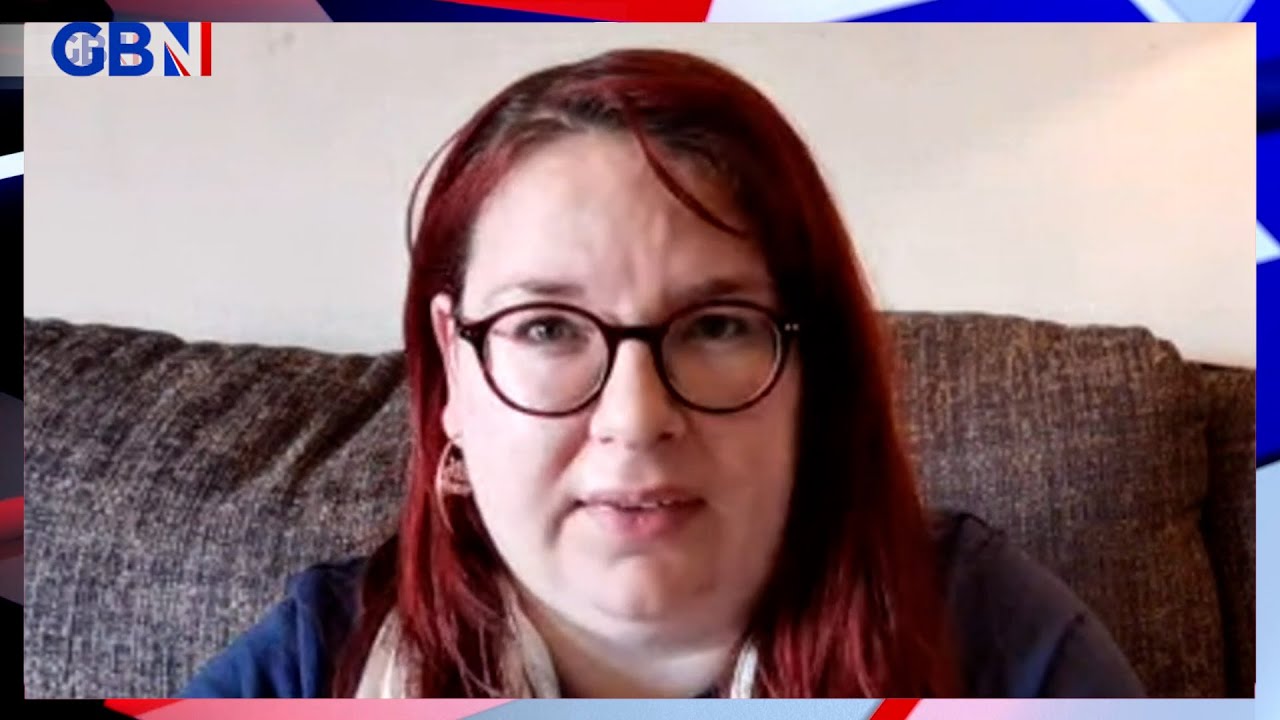
'He will be a danger. He'll do it again and he will do it worse.'
Gemma Aitchison from Yes Matters UK reacts to a man in Scotland avoiding prison for a rape he committed at the age of 17.
Keep up to date with the latest news at https://www.gbnews.com
Twitter: https://twitter.com/GBNEWS
Facebook: https://www.facebook.com/GBNewsOnline
Download the GB News app! You can watch GB News on all of your favourite devices and keep up to date with the latest news, analysis, opinion and more.
https://www.gbnews.com/watch/how-to-watch